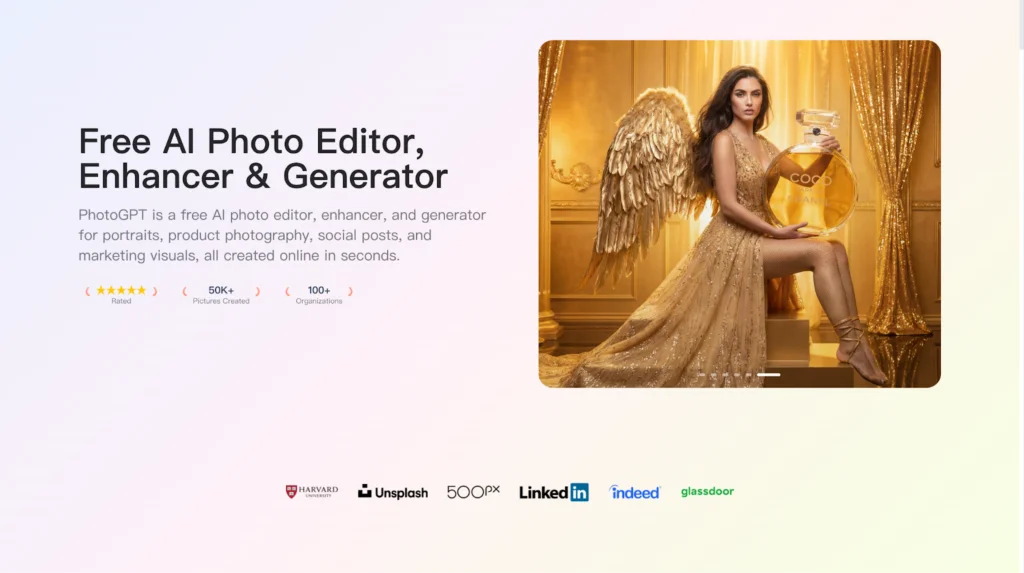
I work on a customer support and onboarding team for a consumer electronics brand. Most of my job is turning confusing moments into clear instructions. The fastest way to reduce tickets is to show customers what to do with a realistic image, not a long paragraph. PhotoGPT fits this workflow because it can generate, edit, and enhance photoreal visuals online, which helps me build clean guidance assets without waiting for a studio setup. PhotoGPT is especially useful when I need consistent “camera style” visuals for step by step help, packaging details, and accessory identification.
What I need from visuals in support and onboarding
Support content is judged by clarity, not creativity. If an image looks fake or unclear, users lose confidence. I need visuals that look like real product photos, with correct proportions, readable details, and lighting that does not distract.
The requirements for a usable help image
A support image works when it has:
- Clear focus on the exact part the user needs to touch or check
- Realistic texture so ports, buttons, and labels look believable
- Clean background so the product stands out
- Sharp detail because users zoom in on small areas
PhotoGPT is useful because the results lean toward a studio style look that reads like real photography.
PhotoGPT generation for step based scenarios
When we launch a new model or accessory, we often lack a complete library of instructional images on day one. Generation helps me fill gaps fast. PhotoGPT responds well when prompts describe a simple product setup and a single action context.
(Any Photo, Any style, All in PhotoGPT)
How I prompt for onboarding visuals
I keep prompts structured and literal:
- One product view and one angle, such as top down or front view
- Neutral background, soft studio lighting, minimal shadows
- Focus on a specific detail, such as a port, button, or connector
- Photoreal texture, accurate edges, no distortion
This produces images that work well in FAQs, setup guides, and in app onboarding cards.
Where generation helps most
I use generation for:
- Quick “what comes in the box” visuals
- Clear connector and cable identification images
- Setup step visuals that show placement and orientation
- Simple lifestyle context images that explain real use
These visuals make self service support easier and reduce repetitive tickets.
PhotoGPT editing for correcting and updating existing help assets
Support content changes constantly. Labels evolve, packaging updates, and accessories change. Editing lets me update existing visuals without rebuilding an entire guide.
Edits that matter in support workflows
The edits I rely on:
- Cleaning distracting backgrounds so the key detail is obvious
- Adjusting small areas to highlight the correct component
- Making visuals consistent across an onboarding series
- Updating an older image so it matches a new product revision
The key is realism. A support image must look trustworthy or customers will question it.
PhotoGPT enhancement for readable details and zoom
Customers zoom in. If an image is soft, it fails. Enhancement helps improve clarity so small details remain readable across devices.
Where enhancement saves time
I use enhancement for:
- Making fine details clearer on web and mobile
- Improving older compressed images used in legacy guides
- Standardizing sharpness across a long knowledge base series
The result feels more professional and reduces confusion during setup.
RoomDesign for support content tied to interior placement
Some support questions are about placement: where to put a device, how to set up a home station, how to arrange a workspace corner. When the environment matters, RoomDesign becomes useful.RoomDesign supports interior concept exploration and room visuals, which helps illustrate setup contexts that feel real and easy to copy.
Where RoomDesign helps in onboarding and support
RoomDesign is useful for:
- Showing example placements in living rooms or offices
- Explaining workspace layout ideas for better ergonomics
- Creating consistent “setup corner” visuals for guides
- Illustrating before and after room organization examples
It helps users understand the environment, not just the device.
Conclusion
PhotoGPT (https://photogpt.io/) delivers a realistic photo centered workflow for generating, editing, and enhancing images online, making it easier to produce clear, studio style product visuals for onboarding and support content. RoomDesign (https://roomdesign.io/) supports fast interior concept exploration and room focused visuals, helping teams illustrate real world placement ideas with clear, shareable room scenes.
Try PhotoGPT: https://photogpt.io/