The Huawei Pura 80 Pro delivers a powerful combination of performance, camera quality, and smart technology—making it an excellent device for productivity and navigation. Many users rely on Google Maps for commuting, travel planning, and exploring new places. Thanks to improved app support and MicroG integration, Google Maps works smoothly on the Pura 80 Pro in 2025. With a few smart adjustments and features, you can enjoy a fast, accurate, and optimized navigation experience. Here are the best ways to make the most of Google Maps on your Huawei Pura 80 Pro.
Tips for Getting the Best Google Maps Experience on Your Huawei Pura 80 Pro
To help you use Google Maps effectively on your Pura 80 Pro, here are the most useful setup techniques, features, and performance tips to enhance your navigation experience.
Install Google Maps Through AppGallery With MicroG for Maximum Stability
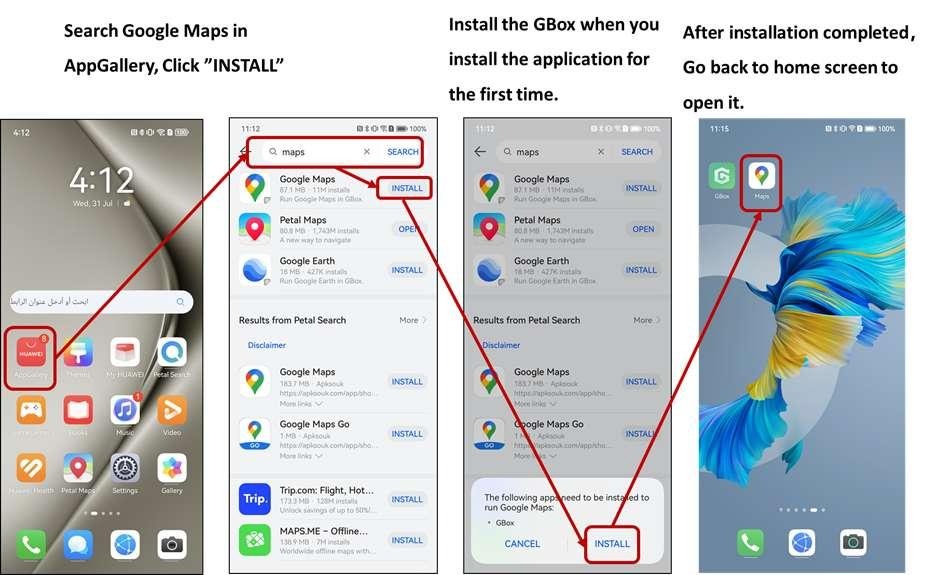
The best way to use Google Maps on the Pura 80 Pro is by installing it through AppGallery, which automatically includes MicroG, a lightweight service that replaces missing Google components. This ensures accurate login support, smooth syncing, and reliable navigation. Once installed, huawei google maps performs nearly identically to how it does on a standard Android device with GMS.
Enable High-Accuracy Location Mode for Better GPS Performance
The Pura 80 Pro includes advanced location sensors, but enabling the right settings helps Google Maps deliver even more precise navigation. Go to Settings → Location Services → High Accuracy and turn on Wi-Fi and Bluetooth scanning. These features allow Google Maps to identify your position quickly, making routes more accurate and reducing GPS drift, which is especially important when walking in crowded cities or driving through tunnels and tight streets.
Allow Google Maps to Run in the Background for Seamless Navigation
Huawei’s battery optimization tools are powerful but can occasionally restrict apps running in the background. To prevent navigation interruptions, go to Settings → Apps → Google Maps → Battery and enable “Unrestricted” mode. Also, allow “Autostart” and “Run in Background.” These settings ensure that Google Maps continues to provide voice guidance, traffic updates, and turn-by-turn directions without freezing or pausing during long trips.
Download Offline Maps Before Traveling
The Pura 80 Pro handles offline data efficiently, and Google Maps allows you to download entire regions before your trip. Go to Google Maps → Profile → Offline Maps → Select Your Own Map. This is especially useful when traveling to areas with weak networks or when using mobile data sparingly. Offline maps provide full navigation, place information, and search capabilities, even without an internet connection.
Use the Pura 80 Pro’s High-Brightness Display for Outdoor Navigation
One advantage of the Pura 80 Pro is its bright, high-resolution display, which is ideal for navigating under direct sunlight. Increasing brightness to auto-adaptive mode ensures Google Maps remains readable while walking or driving outdoors. The smooth refresh rate also improves zooming, panning, and exploring maps, making it easier to review details such as intersections, landmarks, and street layouts.
Sync Saved Places and Routes for Personalized Travel Planning
With MicroG support, the Pura 80 Pro allows Google account syncing. This means your starred places, saved lists, commute routes, and travel history can load normally. Use the “Saved” section in Google Maps to organize favorite cafés, tourist spots, home and work routes, or hotel locations. When planning a trip, syncing ensures you always have quick access to the places you need.
Take Advantage of Real-Time Traffic and Transit Features
The Pura 80 Pro handles real-time data efficiently, allowing Google Maps to deliver live traffic alerts, route rerouting, and public transport schedules. Whether you’re commuting during rush hour or catching a bus or train, real-time updates help you reach your destination faster and more efficiently.
Conclusion
Google Maps works exceptionally well on the Huawei Pura 80 Pro when installed and configured correctly. By enabling high-accuracy GPS, optimizing battery settings, downloading offline maps, and syncing your saved places, you can enjoy a smooth and reliable navigation experience. Combined with the Pura 80 Pro’s powerful hardware and bright display, Google Maps becomes an essential tool for daily travel, road trips, and exploring new destinations.